EPUB to PDF Converter - Help File
Welcome to the EPUB to PDF eBooks Converter product help. This guide provides step-by-step instructions and feature explanations to help you get the most out of the app. Whether you’re converting EPUB, MOBI, PDF, or Word files, or simply viewing your eBooks, you’ll find everything you need to understand and use the app effectively. Use the navigation menu to explore each section based on your needs.
– Advertisement –
Product Support
Have questions regarding the functions of the product, license acquisition, or want to provide feedback? We’d love to hear from you:
Email our support team: [email protected]
If you encounter an issue while using the app, please explain the nature of the problem and provide the steps to reproduce it.
If the issue is related to a particular document, consider attaching the file to your email.
Our knowledgeable and friendly support team will get back to you in a timely manner.
1. eBook Conversion
The EPUB to PDF eBooks Converter is built around its powerful and easy-to-use conversion feature. You can convert single files or perform batch conversions with just a few clicks. The process is straightforward and works across a variety of popular eBook and document formats.
How to Convert eBooks
The EPUB to PDF eBooks Converter focuses on efficient and flexible file conversion. Whether you’re converting a single eBook or processing multiple files in batch, follow these simple steps:
Add or remove files to define the list of files you want to convert
Select the output format from the available conversion options
Choose the output folder to save your converted files
Adjust conversion settings to customize the output format
Start the conversion process and wait for it to complete
Each of these steps is explained in more detail in the sections that follow.
Add or remove files
The EPUB to PDF eBooks Converter supports a wide range of source formats, including EPUB, MOBI, AZW3, AZW, PDF, DOCX, RTF, TXT, HTML, FB2, LIT, PRC, and more. Use the file list and toolbar buttons to build and manage your list of files for conversion.
To Add Files
Use one of the following methods:
Click the
Add Files button on the toolbarDrag and drop one or more files directly into the file list area
To Remove Files
Check the boxes
next to the files you want to removeClick the
Remove Files button on the toolbar
Repeat these steps as necessary until your list of source files is complete and ready for conversion.
Select output format
The EPUB to PDF eBooks Converter allows you to convert from any supported input format to one of the following output formats: PDF, EPUB, MOBI, AZW3, DOCX, FB2, RTF, TXT, ZIP, HTMLZ, OEB, LIT, and LRF.
To Set the Output Format
Click the Convert to dropdown button.
Select your desired output format from the list.
The Convert to dropdown is located directly above the Convert button in the toolbar area.
Choose output folder
You can choose where the converted files will be saved using one of the following options:
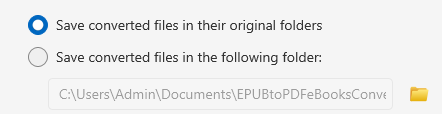
Save to original folders – Each converted file will be saved in the same folder as its source.
Save to a custom folder – All converted files will be saved to a single folder you select.
These options are available in the bottom-left corner of the conversion window. Use the Browse button to select a custom output folder if needed.
Adjust conversion settings
Understand point (pt)
Let’s get straight to the point—pt stands for point, a unit of measurement commonly used in typography. In the app, settings like font size and margins are measured in points.
1 pt = 1/72 of an inch
It’s commonly used to define font sizes, margins, and spacing in digital and print layouts.
Examples:
12 pt font = standard readable text size (used in most books)
18 pt = larger text
72 pt = one inch tall text
So when you set a margin to, say, 36 pt, that means half an inch of space on the page.
Font settings
- Font size: Sets the base font size in points (pt). All text in the output will be scaled relative to this size. Selecting a larger value increases the font size in the converted document, and a smaller value decreases it. If set to zero, the app automatically optimizes the base font size for the output.
- Line height: The minimum line height, as a percentage of the element’s calculated font size. The app will ensure that every element has a line height of at least this setting, irrespective of what the input document specifies. Set to zero to disable. Default is 120%. Use this setting in preference to the direct line height specification, unless you know what you are doing. For example, you can s achieve “double spaced” text by setting this to 240.
Margins
These settings control the white space around the edges of the page in the converted file. You can customize how much space appears between the content and the edge of the page.
Left / Right Margins: Adjust horizontal spacing in pts.
Top / Bottom Margins: Adjust vertical spacing in pts.
Note: 1) Setting margins too small may make the text feel cramped; setting them too large may reduce usable reading space. 2) Page oriented formats such as PDF and DOCX
have their own margin settings that take precedence.
Search & Replace
This option allows you to automatically find specific text in your eBook and replace it during the conversion process.
Search: Enter the word or phrase you want to find.
Replace: Enter the text that should replace it.
Useful for fixing typos, changing formatting tags, or cleaning up unwanted content.
Other options
Remove Empty Paragraphs: Deletes blank lines and empty paragraph tags, reducing unnecessary white space in the output file.
Remove Hyphens: Eliminates hyphens that break words at the end of lines. This improves readability by merging split words into a single line when possible.
Set / Replace First Image: This option automatically replaces the first image in the source file with the image you select. If no image exists in the source file, your selected image will still be inserted as the first image in the output.
2. eBooks Reader
The app includes a built-in eBook viewer that supports a variety of formats, including EPUB, PDF, MOBI, CHM, XPS, DjVu, CBZ, and CBR. It also supports Amazon formats such as AZW and AZW3, provided they are not protected by DRM.
How to Open eBooks
Click the
View eBook button in the toolbar of the conversion window. Then browse and select a file to open it in the eBook viewer.
The eBook Viewer
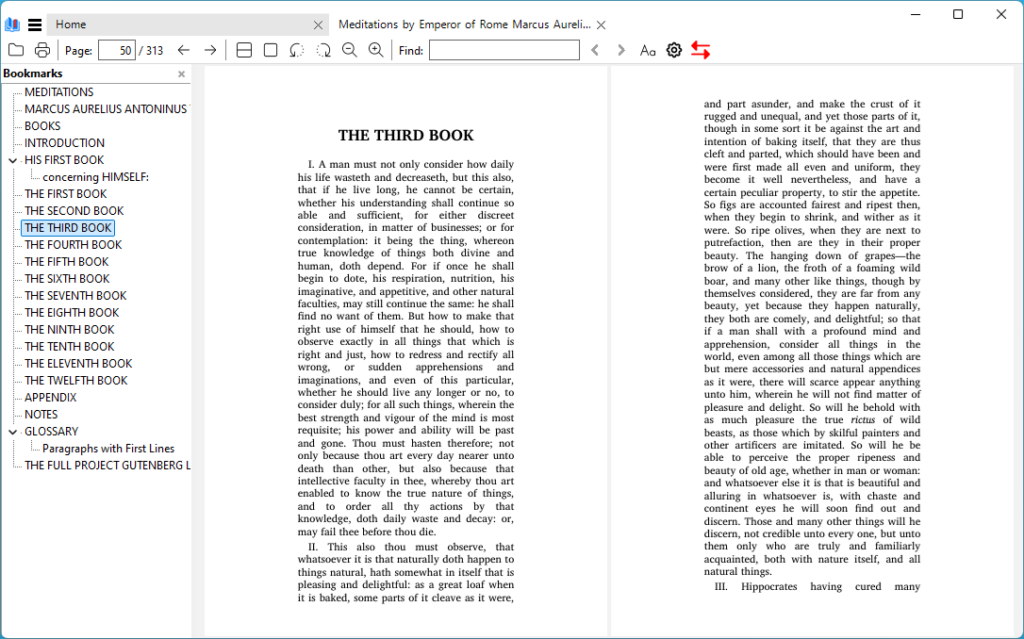
- Menu Bar: Located at the top, it provides access to functions like opening files, adjusting settings, and accessing help.
- Toolbar: Below the menu bar, offering quick access to common actions such as zooming, navigation, and switching to full-screen mode.
- Bookmarks Pane: On the left side, it shows the list of bookmarks you have set for easy navigation.
- Reading Area: The central area where the eBook content is displayed, with options for display modes and customization.
- Search: Use the search bar to find specific text within the eBook.

Zooming and Scrolling
- Zooming: Adjust the zoom level using the zoom buttons in the toolbar or by pressing
Ctrl++orCtrl+-on your keyboard. - Scrolling: Scroll through pages using your mouse wheel, trackpad, or the scroll bar on the side of the reading area.
Full-Screen Mode
- Entering Full-Screen: Maximize your reading experience by entering full-screen mode. Access this via the “View” menu or by pressing
F11. - Exiting Full-Screen: Press
F11again or use the escape key to return to the standard view.
Page Layout Options
Single Page View
Single Page View displays one page at a time, making it ideal for focused reading without distractions. You can enable this view by selecting “Single Page View” from the “View” menu.
- click the main menu ☰ > View > Single Page, or
- Use the shortcut key: Ctrl+6
Book View
Book View mimics the look of an open book, showing two pages side by side. This layout is perfect for reading content that spans across two pages. Choose “Book View” from the “View” menu to enable this option.
- click the main menu ☰ > View > Book View, or
- Use the shortcut key: Ctrl+8
Facing View
Facing View is similar to Book View but does not include a cover page, displaying two pages side by side. You can switch to this layout by selecting “Facing” from the “View” menu.
- click the main menu ☰ > View > Facing, or
- Use the shortcut key: Ctrl+7
Continuous View
Continuous View allows you to scroll through the entire document without page breaks, which is useful for quick navigation through longer texts. Enable this view by selecting “Continuous” from the “View” menu.
- click the main menu ☰ > View > Show page continuously, or
- Use the shortcut key: C
3. Advanced Features
Searching within eBooks
- Search Function: The app includes a robust search function that allows you to find specific text within an eBook. Access it by clicking the search icon in the toolbar or pressing
Ctrl+F. - Search Results: Results will be highlighted in the reading area, allowing you to easily locate the search term within the eBook.
Printing
The app supports direct printing from all eBook and document formats supported by the app.
- From the eBook viewer module, click the Printer icon, or
- main menu ☰ > File > Print…
Sending by Email
The app supports direct emailing of content. To share an eBook via email.
- Click the main menu ☰ > File > Send by email… .
Troubleshooting
Common Issues and Solutions
- eBook Not Opening
- Cause: The file format might not be supported.
- Solution: Ensure the eBook is in a supported format like EPUB, PDF, MOBI, etc. Convert unsupported formats using third-party software.
- App Crashes or Freezes
- Cause: Possible memory overload or software conflict.
- Solution: Close other applications to free up memory, or restart the app. Ensure you have the latest version installed.
- Search Function Not Working
- Cause: The search term may not exist in the eBook.
- Solution: Double-check the spelling and ensure the term is present in the eBook.
Resetting to Default Settings
If the app isn’t functioning as expected, resetting it to its default settings might resolve the issue. Unfortunately, the app does not provide a direct reset option, so you may need to uninstall and reinstall it.